


League of Legends was built around keyboard-and-mouse controls, and Riot has never added full controller support. For players who prefer a controller or simply find it more comfortable, this has been a frustrating limitation.
In this article, we'll explore how controller play became possible in League of Legends, how to set it up, and the best settings to use.
Does League of Legends Have Native Controller Support?
For most of its life, League of Legends had no controller support at all. Playing with a controller meant routing through third-party software to remap inputs manually. It worked, but it was never a clean experience.
That changed when Riot introduced the WASD input system. Controller play became possible through this update, not as a dedicated feature, but because controllers can remap their inputs to WASD. Riot confirmed this themselves, stating they wanted to "enable play on joysticks through remapping of WASD for accessibility reasons." It is worth noting upfront: this is not full console-style controller support. If you're expecting a polished controller experience as you'd get in a dedicated console game, this isn't that.
The update was buried deep in a dev blog, and most players had no idea it was coming. It was first noticed by the popular League of Legends account SkinSpotlights on April 17, before it quickly spread through the community.
Once WASD is enabled, players can move their champion with directional input instead of relying only on right-click movement, with the setup supporting champion movement, basic attacks, camera control, and abilities. Full controller support remains officially unplanned, though Riot noted they continue to monitor player requests.
Also Read: How to Enable WASD Controls in League of Legends
How to Play League of Legends With a Controller
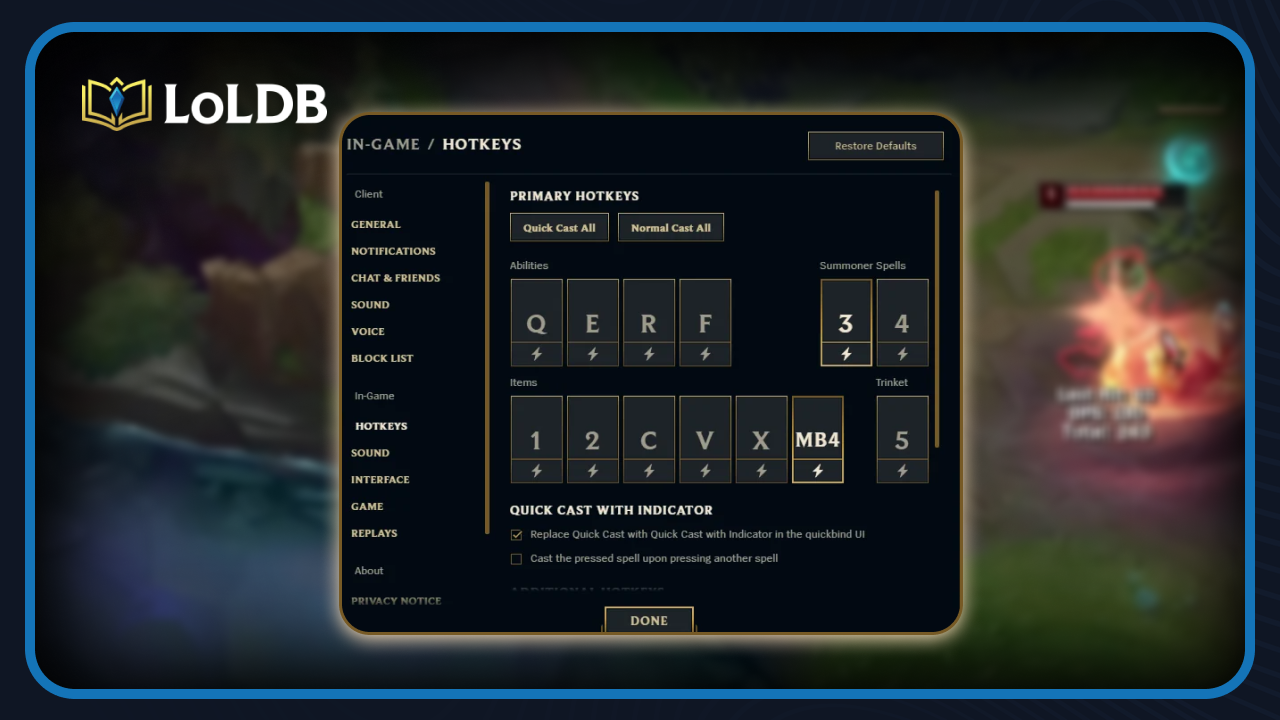
The setup is relatively straightforward. When you enable WASD movement, controller input becomes possible alongside it, and in many cases, no extra software is needed, though results can vary depending on how your OS recognizes the controller.
Press Esc to open the in-game menu.
Click the Input dropdown.
Select Keyboard (WASD).
You can switch between the two control schemes during the first 10 minutes of the game. After that, the option will be locked and can no longer be changed.
League of Legends WASD Controls Guide
Once you're in, the left stick moves your champion around, while the right stick moves the cursor to aim abilities and buy items in the shop. Hotkeys can be customized for your current champion or as a global setting, and you can alternate between Keyboard (WASD) and Mouse (Point & click) at any time. Keep in mind this can't be done outside of a game, so make sure you head into the Practice Tool to set everything up before jumping into a real match.
There are also a couple of options worth knowing about. The first is a checkbox labeled "Rotate WASD inputs relative to map lane orientation." By default, WASD direction is absolute, meaning W moves your champion up, A moves left, S down, and D right. With the checkbox enabled, the movement system rotates 45 degrees, aligning your controls with the map layout, which can reduce hand strain since League is played at an angle.
One thing to watch out for: auto-attack is on by default, so you might start hitting minions when you don't mean to. Turn that off immediately after enabling WASD. If anything feels off, switch back to classic controls, reset to default, then re-enable WASD. Riot is still refining the experience, so some rough edges are expected.
Best Controller Settings for League of Legends
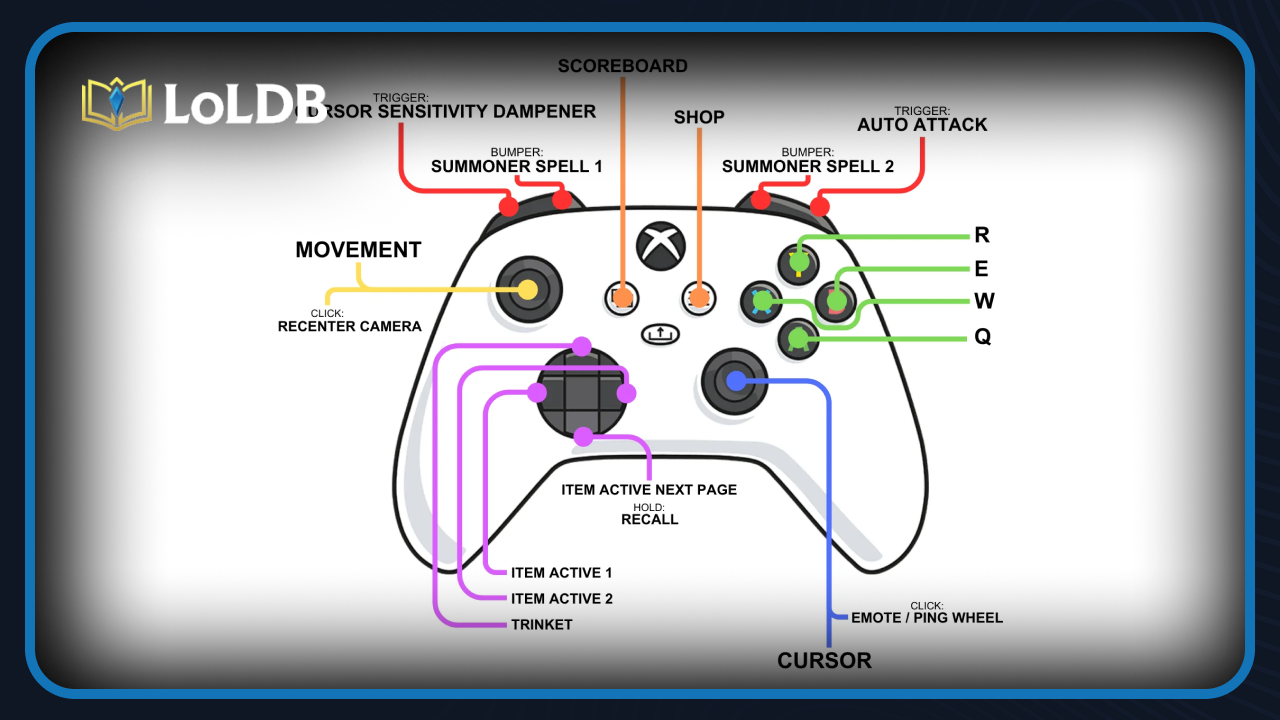
Since there are no dedicated controller settings, the best you can do right now is optimize the WASD settings to get the most comfortable experience. Here are the key things to adjust.
Turn Off Auto-Attack
Auto-attack is on by default and will have you hitting minions at the worst times. Turn it off as soon as you enable WASD and bind it to a button you can press intentionally.
Adjust Camera Speed
The Scout Ahead setting is enabled by default the first time you activate WASD. If the camera moves too much for your liking, use the speed slider to slow it down, or disable Scout Ahead entirely from the Camera menu.
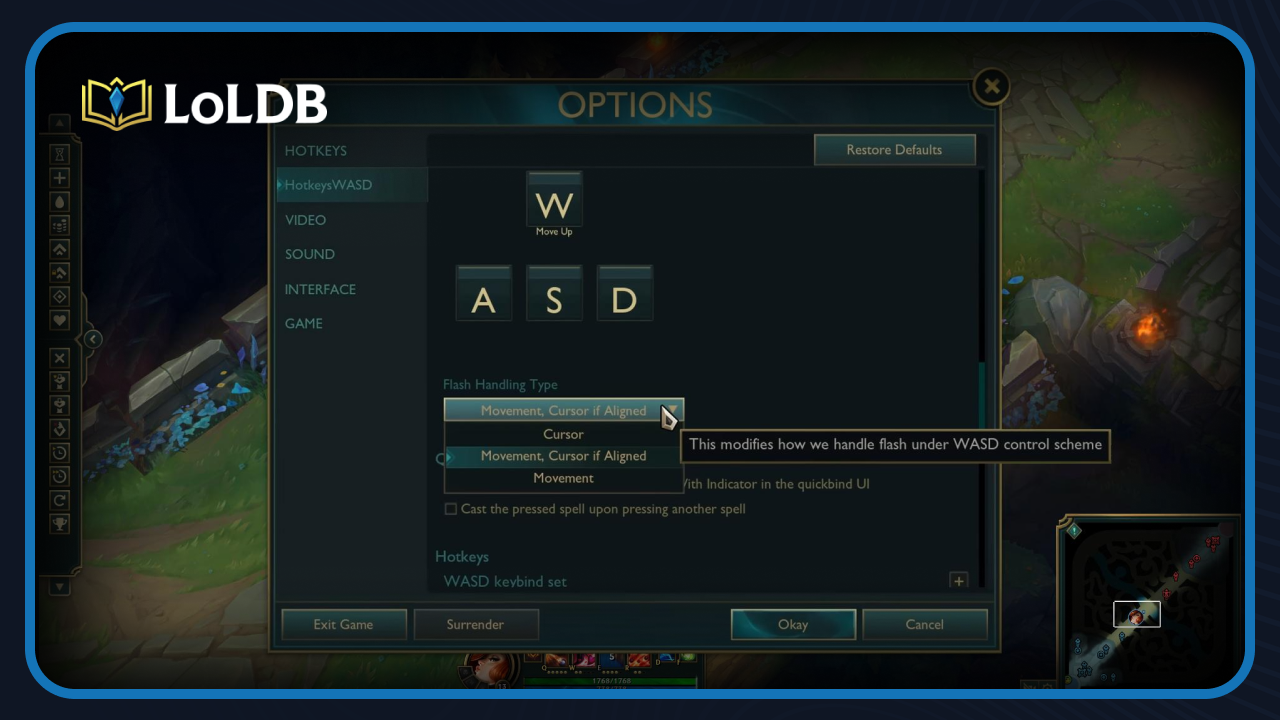
Set Your Flash Handling
The Flash Handling Type has two options. "Movement with Cursor" tends to be the most comfortable and accurate, but it's worth trying both to find what works best for you.
Use Champion-Specific Keybinds
With champion-specific keybinds, you can run completely different layouts per champion. This is especially useful when switching between a melee champion and a ranged one, since the way you interact with abilities changes quite a bit between the two.
As a general rule, WASD works better on melee champions and for kiting on ADCs, while point-and-click remains better for champions that need precise cursor placement at range, such as Orianna, Azir, and Thresh. Keep that in mind when deciding which champions to start with on the controller.
Which Controller Works Best
Xbox controllers are the safest choice because they have native Windows support and typically work without additional setup. PlayStation controllers can also work, but may require extra configuration depending on your system. If you run into issues, tools like Steam Input can help your OS recognize the controller properly.
Also Read: How to Ping in League of Legends
Final Words
Controller support in League of Legends is possible now, but it's indirect and still limited. It works through WASD remapping rather than dedicated controller integration, so the experience won't feel like a traditional console game. That said, for players who prefer a controller or need it for accessibility reasons, it gets the job done, and the fact that it works without third-party software is a meaningful step forward for a game that has been historically locked to mouse and keyboard.
Want to explore more? LoLDB has everything League of Legends. Browse champions, skins, mythic shop rotation, current sales, and much more!
How to Change Name in League of Legends (2026)
Your summoner name is how other players identify you in-game, and at some point, you might want to change it. For many players, the name they picked years ago no...
How to Full Screen in League of Legends
Playing in full screen can make a noticeable difference, giving you a cleaner view of the map and better overall performance. The problem is that the game doesn't...