

Pings are quick in-game signals you use to communicate with your team without typing. They show up as visual alerts on the map or minimap, telling your teammates what's happening or what you want to do. The game has two types of regular pings and eight smart pings, covering everything from calling out a missing enemy to signaling a full team fight. In this article, we'll go through each ping type, how to use them, and when to use them to actually help your team.
How to Use Pings in League of Legends
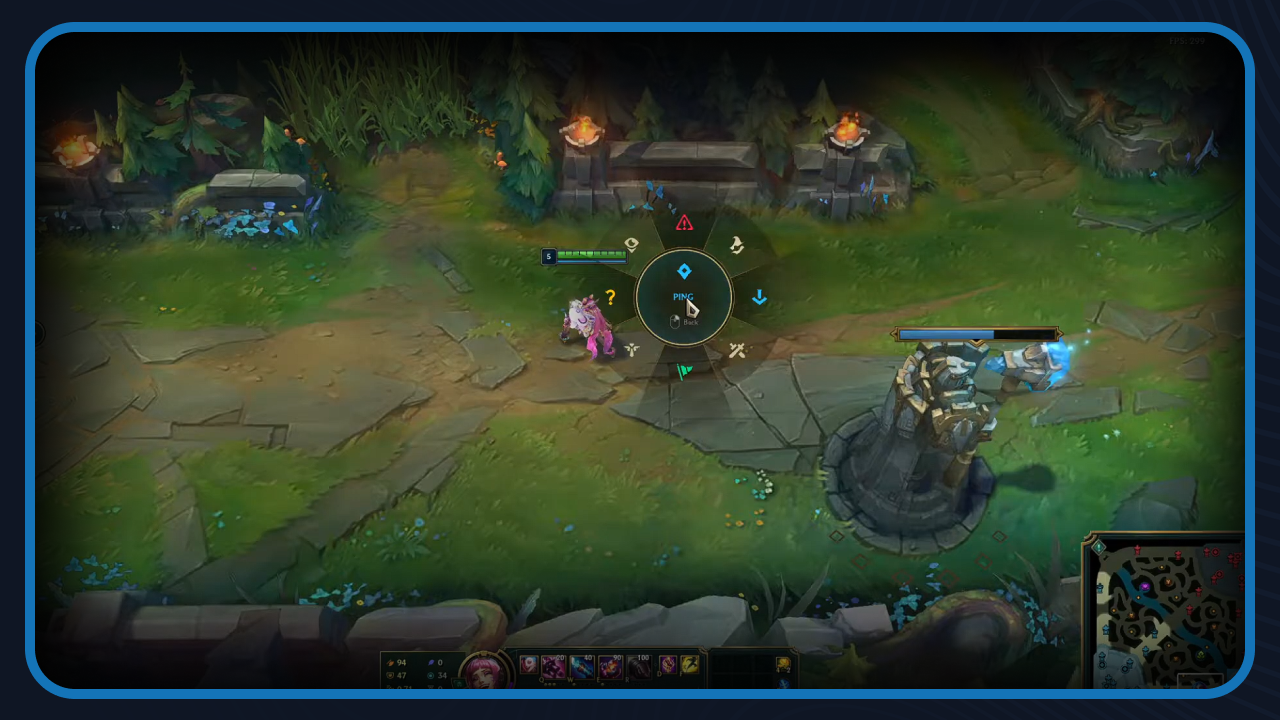
Pinging in League of Legends is straightforward once you know the controls. There are multiple main ways to ping. Here are the complete steps.
Regular Pings
These are the quickest ways to send an alert. There are two types:
Generic Ping: draws attention to a location or target. Press G + Left Click, or Alt + Left Click.
Caution Ping: warns teammates of danger. Press Ctrl + Left Click.
Both work on the map, minimap, enemy champions, turrets, and jungle objectives.
Smart Pings
Smart pings give you more specific options. To open the ping wheel:
Hold Alt or Ctrl, then left-click and hold.
Drag your mouse toward the ping you want.
Release to send it.
The eight smart pings available are Retreat, Push, On My Way, All-In, Assist Me, Need Vision, Enemy Missing, and Enemy Vision.
Ability and Item Pings
You can also ping your abilities and items directly from your HUD:
Hold G or Alt.
Click on the ability or item you want to ping.
This lets your team know your cooldowns or what you're building without saying a word.
How to Customize Your Ping Hotkeys
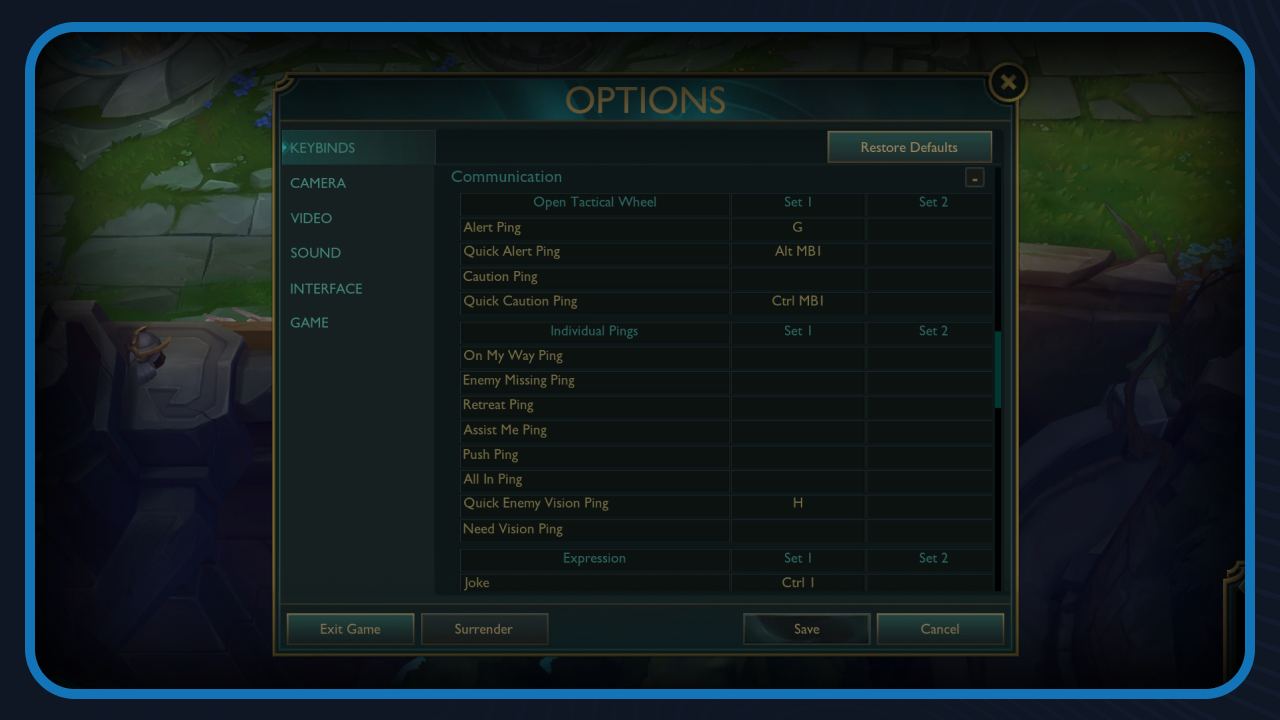
The default ping keys work fine, but League lets you reassign them to whatever feels more comfortable. This is useful if your current bindings conflict with other keys you use often, or if you just prefer a different layout.
To change your ping hotkeys:
Press Escape to open the settings menu.
Click on the Keybinds tab.
Scroll down to the Communication section.
Find the ping you want to rebind and click on it.
Press the new key you want to assign to it.
Click Save to save your changes.
It's a good idea to test your new bindings in a custom game or Practice Tool before jumping into a real match, just to make sure everything works the way you expect and nothing conflicts with your other keybinds.
Final Words
Pings are faster than typing, and your whole team sees them instantly. Start with the basic pings, then work your way to the smart ping wheel as you get comfortable. Once it becomes a habit, your team coordination will improve without saying a word.
Want to explore more? LoLDB has everything League of Legends. Browse champions, skins, mythic shop rotation, current sales, and much more!
All League of Legends Seasons Start & End Dates
League of Legends is a competitive MOBA game that has dominated the gaming scene since 2009. Over the years, the game has received numerous seasons, with each...
All Morgana Skins in League of Legends (2026)
Morgana has been in League of Legends since 2009, making her one of the oldest champions in the game. Over the years, Riot has released a long list of skins for...