


Like any online game, League of Legends can run into technical issues over time, such as corrupted files, failed updates, or the client simply not launching. These problems can be frustrating, especially when you just want to get into a game. In this article, we'll walk through the different ways to repair League of Legends, so you can get back to playing without having to fully reinstall the game.
1. Repair League of Legends Using the Built-in Tool
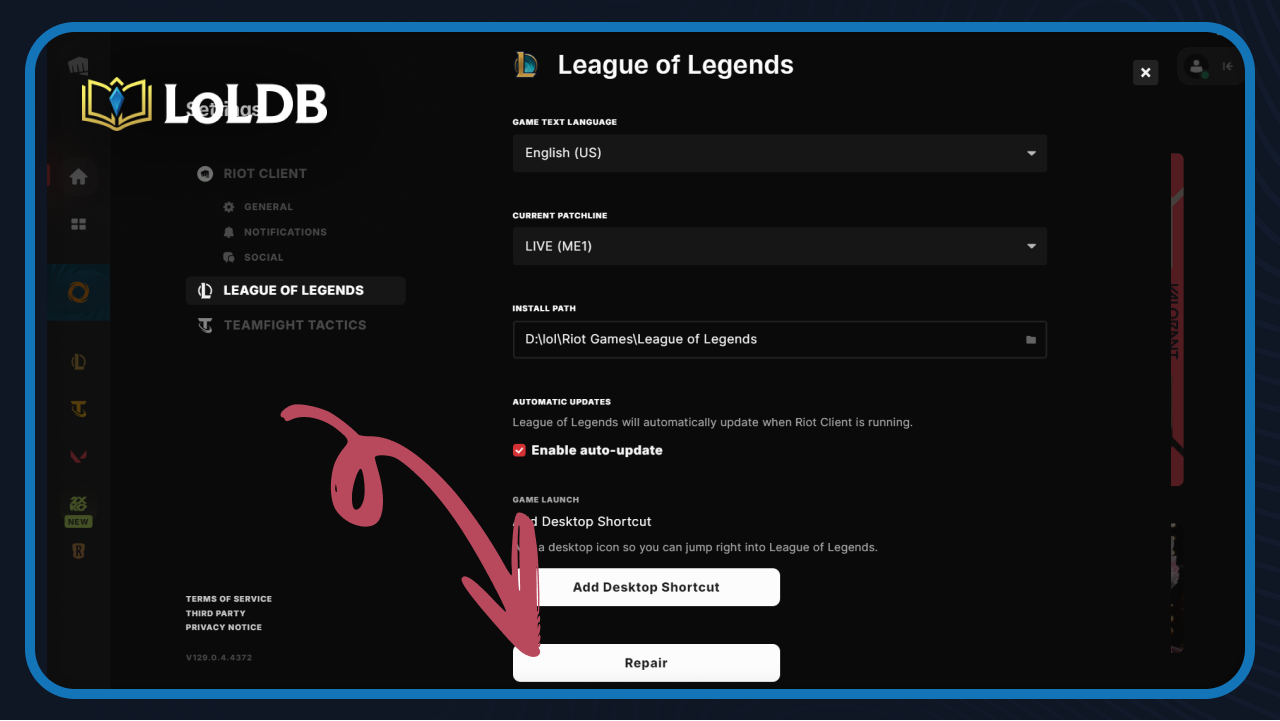
Riot Games includes a built-in repair tool directly in the Riot Client, so before trying anything else, this should always be your first step. It automatically scans your game files and fixes any corrupted or missing ones without touching your settings or progress.
Here's how to use it:
Open the Riot Client and log in to your account.
Click on the small profile icon in the top-right corner.
Select Settings from the dropdown menu.
In the left column, click on League of Legends.
Click the Repair button at the bottom.
Once the process is done, restart the client and check if the issue is resolved.
Also Read: How to Fix Error Code 57 in League of Legends
2. Clear the Cache
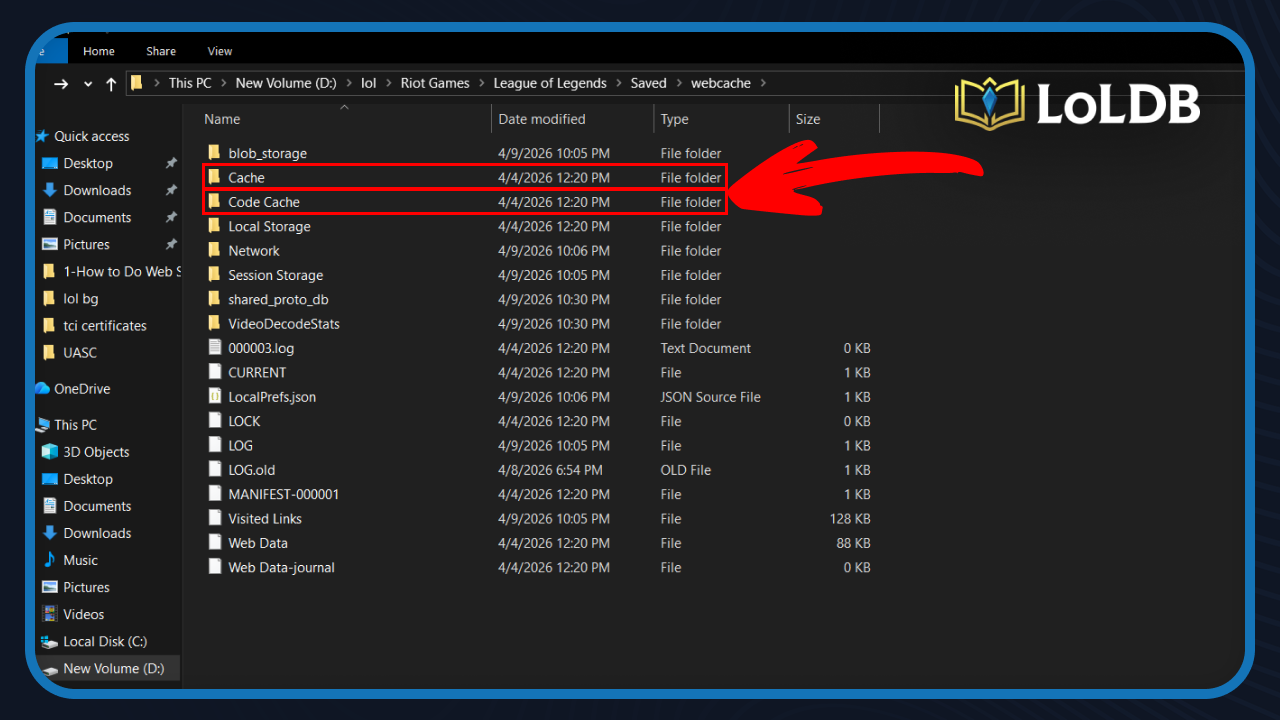
If the repair tool didn't fix the issue, clearing the cache is a good next step. Over time, cached files can pile up and cause performance issues or prevent the game from launching properly.
Here's how to clear the League of Legends cache:
Make sure the Riot Client and League of Legends are fully closed.
Open File Explorer and navigate to your League of Legends installation folder.
Open the "Saved" folder, then open the "webcache" folder.
Delete the "Cache" and "Code Cache" folders.
Restart your PC and launch the game again.
The client will automatically rebuild the cache on the next launch, which is what you want. If the game still has issues after this, move on to the next step.
3. Reinstall League of Legends
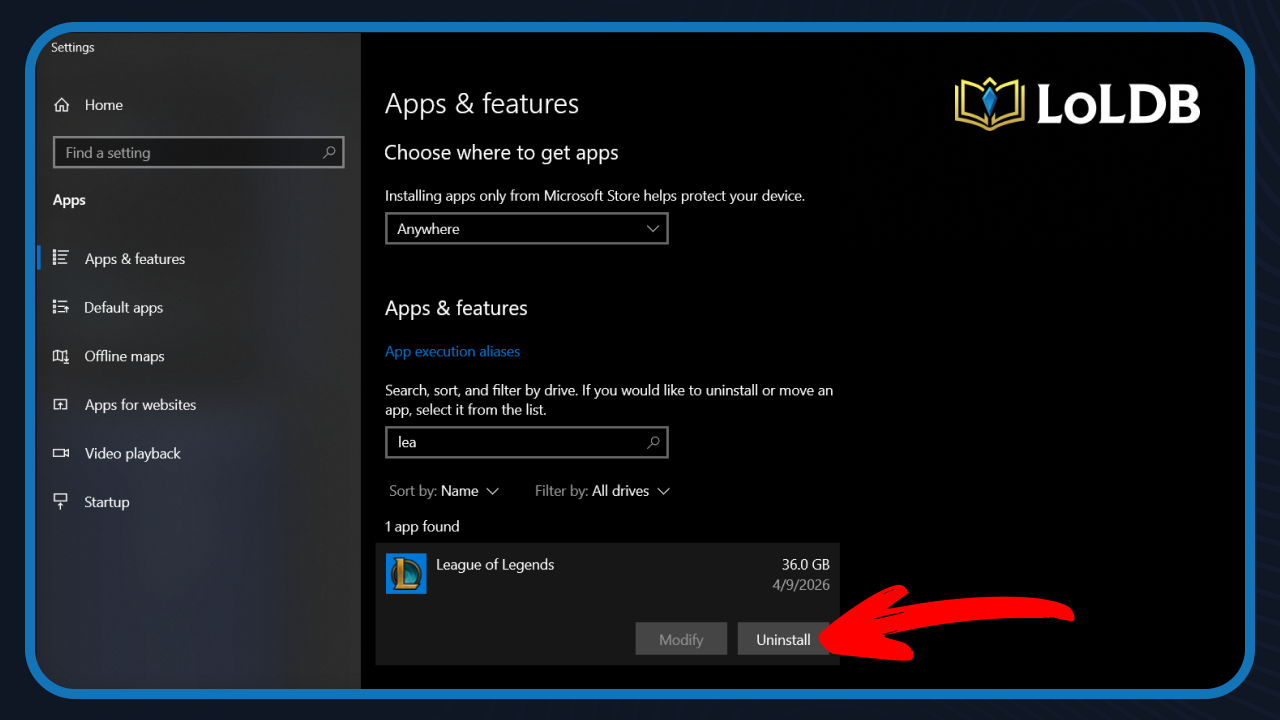
Looking at the client, the uninstall option isn't in the Riot Client itself. You need to do it through Windows settings instead. Here's the corrected steps:
Close the Riot Client completely.
Open Windows Settings and go to Apps.
Search for League of Legends and click on it.
Select Uninstall and confirm.
Once done, open the Riot Client, select League of Legends, and click Install.
After the installation is done, launch the game, and the issue should be gone. Keep in mind, this will take longer than the previous methods since it's downloading the full game again.
Also Read: How to Enable WASD Controls in League of Legends
Final Words
These three methods cover most of the issues you'll run into with League of Legends. Start with the built-in repair tool, move on to clearing the cache if that doesn't work, and if all else fails, a clean reinstall will almost always get things back to normal. Once the game is running again, you shouldn't need to repeat this process anytime soon.
Want to explore more? LoLDB has everything League of Legends. Browse champions, skins, mythic shop rotation, current sales, and much more!
How to Full Screen in League of Legends
Playing in full screen can make a noticeable difference, giving you a cleaner view of the map and better overall performance. The problem is that the game doesn't...
How to Change Name in League of Legends (2026)
Your summoner name is how other players identify you in-game, and at some point, you might want to change it. For many players, the name they picked years ago no...