


High ping is one of the most frustrating issues you can run into while playing. A single high-ping moment can cost you a kill, a teamfight, or even the entire game, and it gets worse the more competitive you play.
In this article, we'll go through the most effective methods to lower your ping in League of Legends and get a smoother, more responsive experience.
Check Your Internet Connection and Network Setup
High ping usually starts with your internet connection, so that's the first place to check before doing anything else.
The most effective switch you can make is moving from Wi-Fi to a wired Ethernet connection. Wi-Fi is convenient but unstable, and even a small amount of interference can spike your ping significantly. A direct Ethernet connection gives you a more stable and consistent signal, which makes a noticeable difference in-game.
If you're already on Ethernet and still experiencing high ping, restart your router and modem. It sounds simple, but it clears temporary network issues that build up over time and can bring your ping down without any extra steps.
You should also check what else is running on your network while you play. Other devices streaming, downloading, or uploading in the background consume bandwidth and directly affect your ping. Pausing those activities while you play or setting up Quality of Service settings on your router to prioritize gaming traffic can help a lot.
Also Read: How to Repair League of Legends
Adjust Your In-Game and System Settings
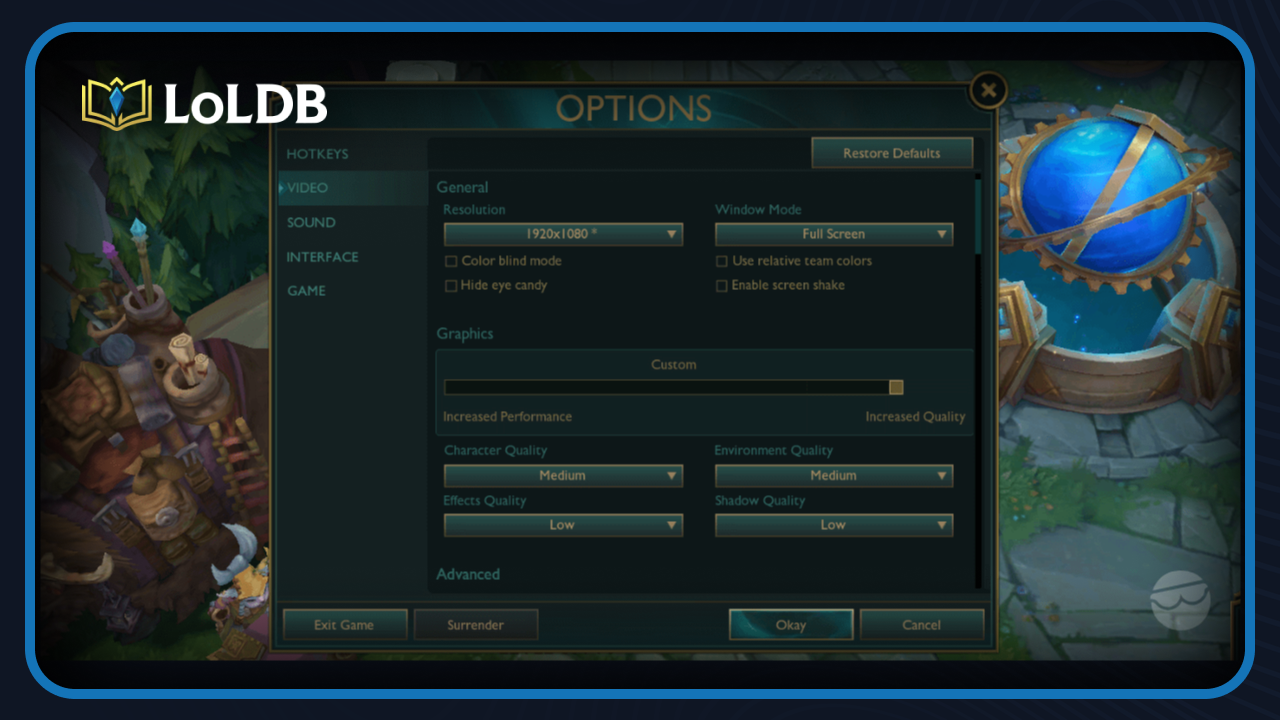
Once your network is sorted, there are a few settings on your PC and inside League of Legends itself that can help reduce ping and keep it stable.
Start by closing any background applications before you launch the game. Programs like browsers, Discord, OneDrive, or any download managers consume bandwidth and can interfere with your connection. You can close them manually or use Task Manager to end any processes you don't need while playing.
One useful setting inside the League client is "Close Client During Game." You can enable it under Client Settings, and once you do, the client will automatically shut itself down when a match starts and reopen when it ends. The client consumes network resources while running in the background, so closing it during a game can contribute to a more stable connection.
You should also make sure your network driver is up to date. Outdated drivers can cause connection issues that are easy to miss. You can check for updates by right-clicking your network adapter in Device Manager and selecting "Update driver."
Another step worth taking is changing your DNS server. Your ISP's default DNS isn't always the fastest option. Switching to a public DNS like Google's 8.8.8.8 or Cloudflare's 1.1.1.1 can reduce the time it takes to resolve connections, which can lead to a slight but consistent improvement in ping.
Use Third-Party Tools to Fix High Ping

If you've gone through your network setup and system settings and your ping is still higher than it should be, third-party tools are worth looking into.
The most popular option is a gaming VPN or ping reducer. Tools like WTFast, Exitlag, and Mudfish work by routing your connection through optimized servers that find a faster path between your PC and the League of Legends servers. Your standard internet route isn't always the most direct one, and these tools can bypass that by giving your traffic a better path to travel through.
Exitlag and WTFast both have free trials, so you can test them before committing to a subscription. If your ping drops noticeably during the trial, it's a sign that your default route is the problem and the tool is worth paying for.
Another option is using Cloudflare's WARP, which is completely free. It works similarly to a VPN by optimizing your internet route, and while it doesn't always guarantee lower ping in games, many players have reported a noticeable improvement after switching to it. It's a low-effort option to try before spending money on a dedicated ping reducer.
Keep in mind that these tools work best when the issue is routing rather than raw internet speed or an unstable connection. If your internet itself is the problem, a ping reducer won't fully fix it, and reaching out to your ISP to report consistent connection issues would be the better move.
Also Read: How to Fix "Session Expired" Error in League of Legends
Final Words
High ping in League of Legends is a fixable problem in most cases. Start with your network setup, move to a wired connection, and clear up any background bandwidth usage. If that's not enough, updating your network drivers, tweaking your DNS, and trying a ping reducer like Exitlag or WTFast should get you where you need to be.
Want to explore more? LoLDB has everything League of Legends. Browse champions, skins, mythic shop rotation, current sales, and much more!
How to Change Region in League of Legends: Step-by-Step Guide
League of Legends is a MOBA game developed and published by Riot Games. When you first create an account in League of Legends, it's tied to a specific region or...
How to Enable WASD Controls in League of Legends (2026)
League of Legends has relied on mouse clicks for movement, but Riot Games introduced an official WASD movement option, giving players a keyboard-based alternative...