


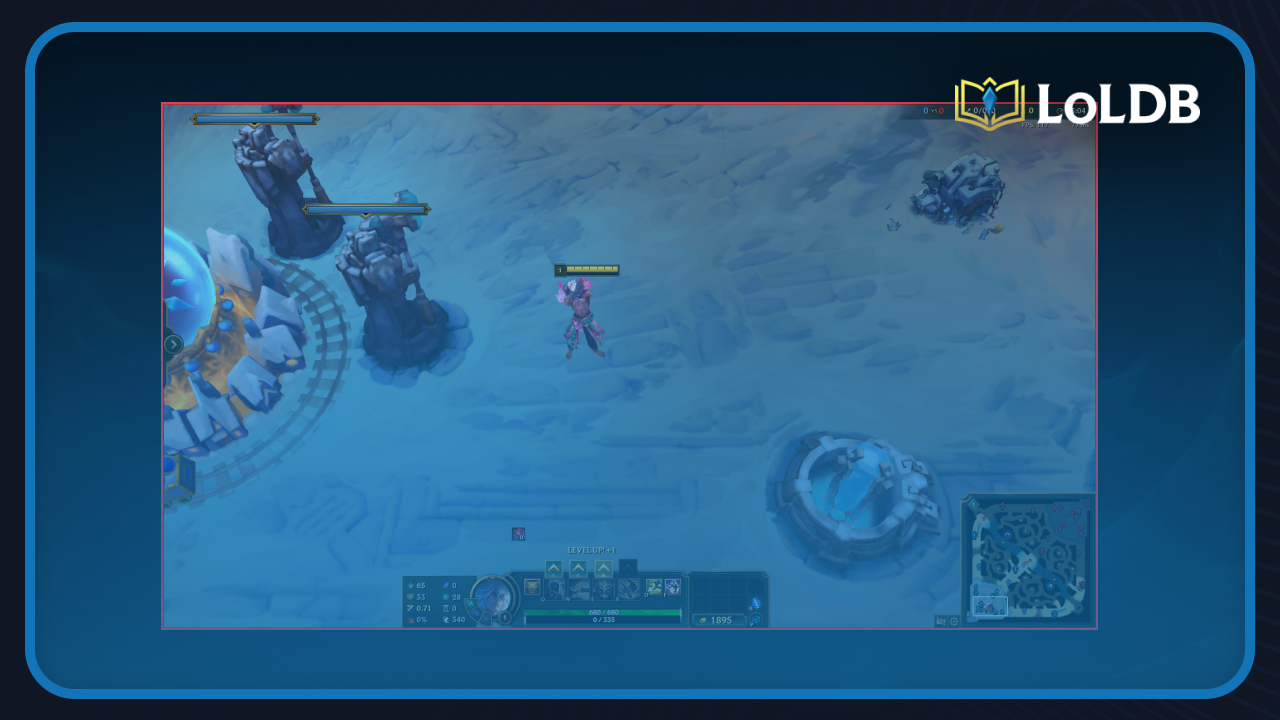
In League of Legends, the red border that appears around your screen serves a specific purpose for multi-monitor setups. It helps players with two or more screens move their cursor between displays without accidentally clicking outside the game window.
However, this feature creates problems if you play with free camera movement, as the border prevents you from scrolling the camera across the map properly. In this article, we'll explore how to disable the red border in League of Legends and regain full camera control during your matches.
What is This Red Border?
The red border appears when the "Toggle Mouse Screen Lock" feature is activated in League of Legends. This feature helps players with two or more monitors move their cursor between displays without the game capturing it completely.
The problem starts when you use free camera movement. The red border prevents your cursor from reaching the screen edges, which stops you from scrolling the camera across the map. You end up stuck with limited vision because the game treats the border as a boundary for your cursor movement.
This creates a frustrating situation where a feature designed to help multi-monitor users actually blocks basic camera controls for anyone playing with free camera settings.
How to Disable Toggle Mouse Screen Lock
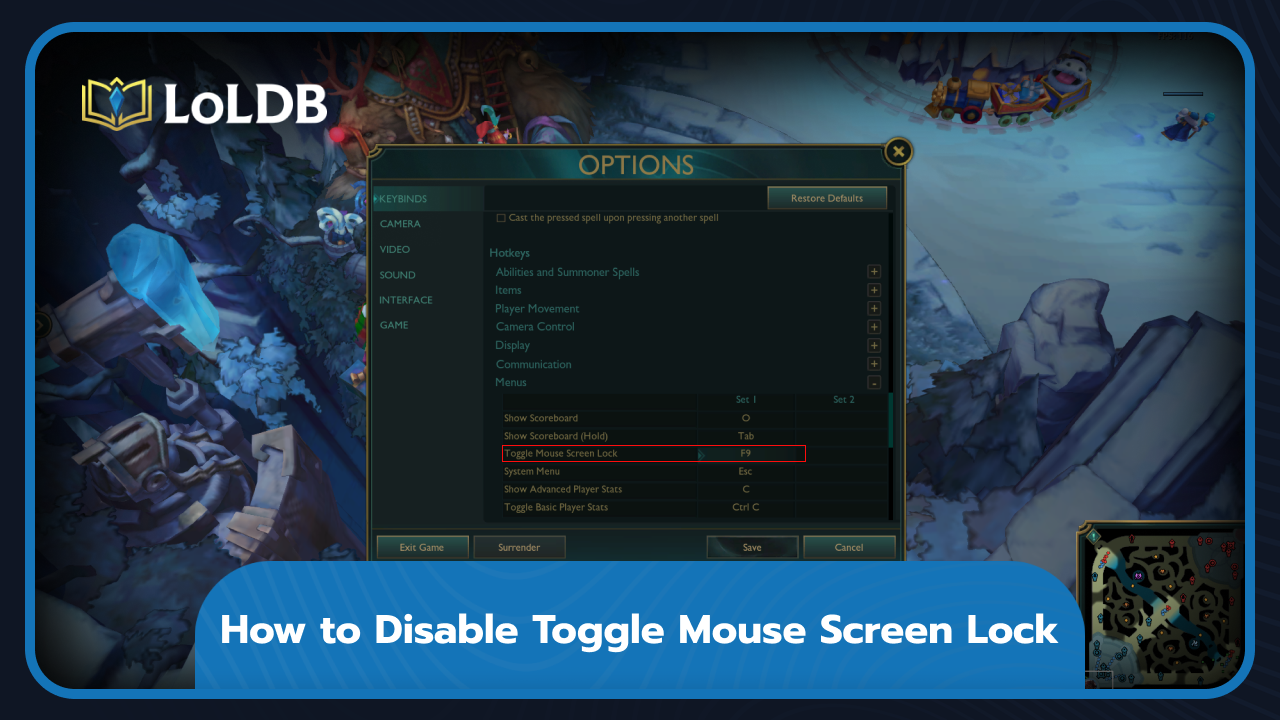
Press F9 to toggle the red border on and off. If F9 doesn't work or you want to use a different key, the process is straightforward:
Launch the League of Legends client and go into Practice Tool.
Press ESC to open the settings menu.
Navigate to the Hotkeys option.
Scroll down to the Hotkeys section and expand the Menu category.
Find "Toggle Mouse Screen Lock" and change the F9 binding to any key you prefer.
When you change the binding, you can freely toggle the feature on or off using your new keybind. This gives you complete control over when the red border appears and when your mouse movement is restricted to the game window.
Final Words
The red border in League of Legends exists to help multi-monitor users, but it gets in the way if you play with free camera movement. Press F9 to toggle it off, or rebind the hotkey through the game settings if needed. This simple fix restores your full camera control and lets you navigate the map without restrictions during matches.
Want to explore more? LoLDB has everything League of Legends. Browse champions, skins, mythic shop rotation, current sales, and much more!

How Many Times Did T1 Win the Worlds?
T1 is a South Korean esports organization best known for its legendary League of Legends team. They are the most successful team in LoL history, with T1 having won...
How to Get Mythic Essence in League of Legends (2026)
Mythic Essence is League of Legends' premium currency for exclusive skins and prestige content. You can't buy it directly with real money, so you need to know the...